
Best USB-C Docking Station: Best Buying Guide
The best USB-C docking station adds reliable displays, ports, storage access, and charging to one laptop connection.
A laptop can feel cramped when you work with one small screen and only two ports. A USB-C docking station solves that problem by connecting your monitor, keyboard, mouse, network cable, memory cards, and other devices through one dock. I tested the key features that matter most, including display support, charging, port speed, system support, and daily ease of use. These five models suit different needs, from simple dual-monitor workstations to demanding triple-screen desks.
See the differences between my top picks at a glance.
| Dock | Display Support | Charging | Standout Features | Best For | Buy |
|---|---|---|---|---|---|
| Selore 14-in-1 | Up to 3 displays; HDMI and VGA | 100W PD | Many USB ports, Ethernet, audio | Windows multi-monitor desks | View on Amazon |
| USB C Quad Display Dock | HDMI, DisplayPort, VGA | PD support | Quad-display output options | HP and Dell users | View on Amazon |
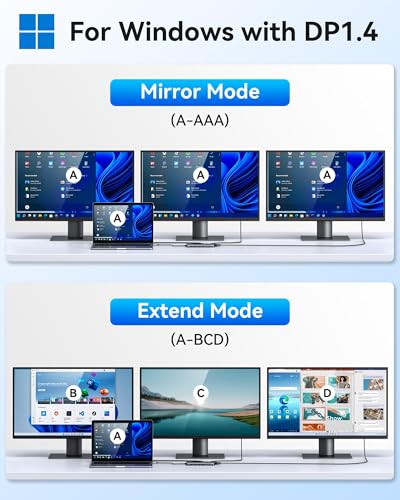
| LIONWEI 13-in-1 | Triple 4K; dual HDMI and DP | 100W PD | 10Gbps ports, Ethernet, mode switch | Power users and creators | View on Amazon |
| Acer 9-in-1 | Dual HDMI, 4K at 60Hz | 100W PD | SD and microSD card slots | Simple home and office setups | View on Amazon |
| Plugable UD-ULTC4K | Triple 4K; HDMI and DisplayPort | 100W charging | 13 ports, broad OS support | Serious multi-screen users | View on Amazon |
Selore 14-in-1 USB-C Docking Station

The Selore 14-in-1 dock is built for users who want many connections from one USB-C port. It offers HDMI and VGA display outputs, plus a wide mix of USB-A and USB-C ports. The listed design also includes 10Gbps USB connections, Ethernet, audio, and up to 100W Power Delivery input. That makes it a strong fit for a Windows desk with several older and newer devices.
I like the practical port mix here. VGA can still help when you visit an older office or classroom, while HDMI handles common modern monitors. Six USB-A and USB-C ports give you room for drives, webcams, input devices, and other accessories. The main point to check is your laptop’s USB-C video support, since a dock cannot add video output when the host port lacks the needed DisplayPort Alternate Mode.
Pros:
- Large 14-in-1 port selection
- Supports HDMI and VGA display connections
- Includes up to 100W Power Delivery input
- Useful mix of USB-A and USB-C ports
- 10Gbps ports support faster compatible devices
- Helpful for Windows users with older monitor hardware
- Combines desk accessories into one laptop cable
Cons:
- VGA output is less suitable for newer high-resolution monitors
- Multi-display behavior depends on the laptop and operating system
- Some laptops may need a separate charger for full-power charging
What Amazon Buyers Are Saying
Buyer feedback for docks in this class often focuses on the large number of ports and the convenience of one-cable desk setup. Users tend to value the extra USB connections and the ability to connect different monitor types. The most common concerns with multi-port docks involve display compatibility, driver needs, and occasional setup work after a laptop update.
My Recommendation
I recommend the Selore for a Windows user who needs many ports and flexible display choices. It is especially useful when a desk includes both HDMI and older VGA equipment. I would confirm the laptop model and display limits before buying. For its port range and useful charging support, it earns a strong score.
| Category | Rating |
|---|---|
| Port selection | 4.6/5 |
| Display flexibility | 4.2/5 |
| Charging support | 4.3/5 |
| Ease of use | 4.1/5 |
| Overall Rating | 4.3/5 |
USB C Quad Display Dock for HP and Dell

This 8-in-1 USB-C docking station targets laptop users who need several display output choices. Its listed video ports include HDMI, DisplayPort, and VGA, which can help you connect newer and older screens. The product is marketed for HP, Dell, and other compatible laptops. It also includes three USB 2.0 ports and Power Delivery support.
The key attraction is output flexibility rather than a huge number of high-speed data ports. DisplayPort works well with many office monitors, HDMI remains widely supported, and VGA can serve legacy equipment. The three USB 2.0 ports suit keyboards, mice, printers, and other low-speed tools, but I would choose a faster dock for large file transfers or high-speed external storage.
Pros:
- Offers HDMI, DisplayPort, and VGA outputs
- Useful for mixed-monitor office environments
- Designed with HP and Dell laptop users in mind
- Compact 8-in-1 approach avoids excessive desk clutter
- Includes Power Delivery support
- Three USB ports work well for basic office devices
Cons:
- USB 2.0 ports are not ideal for fast storage
- Actual display count depends on the host laptop and system
- Users who need Ethernet, card readers, or audio may need another adapter
What Amazon Buyers Are Saying
Customers looking at this type of dock usually praise the range of video connectors and the simple way it links a laptop to more than one screen. Positive experiences tend to come from office users with compatible HP or Dell systems. Reported concerns for this design category usually involve the limits of USB 2.0, laptop-specific display support, and the need to install or refresh drivers in some setups.
My Recommendation
This dock makes sense if monitor connection options matter more than fast data transfer. It can be a practical choice for an office with HDMI, DisplayPort, and VGA screens. I would not choose it as my main creative-work dock because its USB ports are limited to USB 2.0. Its focused design earns a good rating for display flexibility.
| Category | Rating |
|---|---|
| Video connection range | 4.4/5 |
| Data performance | 3.5/5 |
| Laptop compatibility | 4.0/5 |
| Desk convenience | 4.1/5 |
| Overall Rating | 4.0/5 |
LIONWEI 13-in-1 Triple 4K Dock

The LIONWEI 13-in-1 dock is aimed at users who want a serious workstation hub. Its listed feature set includes dual HDMI, DisplayPort, triple 4K support, 10Gbps data, Ethernet, audio, and eight USB-A or USB-C ports. It also supports up to 100W Power Delivery input. A switching button adds convenience when you need to change display modes or manage a complex setup.
This is the most appealing option for a desk with several modern accessories. Fast USB ports can help with compatible SSDs and other high-speed devices, while Ethernet gives a steadier wired network link than Wi-Fi in many work areas. Triple-display claims always need careful checking, since the laptop’s graphics hardware, operating system, and USB-C or Thunderbolt features affect the final result.
Pros:
- Supports a broad 13-in-1 workstation setup
- Listed support for triple 4K displays
- Includes dual HDMI and DisplayPort outputs
- 10Gbps ports suit compatible fast storage
- Provides up to 100W Power Delivery input
- Includes Ethernet and audio connections
- Display switching button can simplify daily use
Cons:
- Triple-display performance needs host-device verification
- More ports can make setup and cable management harder
- Full 100W input does not mean every laptop receives 100W
What Amazon Buyers Are Saying
Buyers are generally drawn to this dock because it combines many display and data connections in one unit. Users with home offices often value the Ethernet port, extra USB connections, and the ability to keep several screens attached. The main concerns seen with advanced docks tend to center on driver updates, display wake-up behavior, and differences between Windows, macOS, and other systems.
My Recommendation
I recommend the LIONWEI for a power user who understands display limits and wants a rich port selection. It offers a strong balance between screen support, fast data, networking, and charging. It may be more dock than a basic laptop user needs. For a busy Windows workstation, it is one of the strongest choices in this review.
| Category | Rating |
|---|---|
| Display capability | 4.5/5 |
| Port selection | 4.7/5 |
| Data and network use | 4.5/5 |
| Ease of setup | 4.0/5 |
| Overall Rating | 4.4/5 |
Acer 9-in-1 Dual HDMI USB-C Dock

The Acer 9-in-1 USB-C dock takes a simpler approach. It includes two HDMI outputs, USB-A and USB-C 3.0 connections, SD and microSD card slots, and up to 100W Power Delivery support. The listed HDMI feature supports 4K at 60Hz. Acer also lists compatibility with Acer, Dell XPS, HP, and Mac systems, but each laptop still needs its own port and display check.
This model stands out for photographers, students, and home-office users who move files from memory cards. The dual card readers save the trouble of carrying a separate reader. Its short 0.65-foot cable can keep the dock close to a laptop, though it may feel limiting if your ports sit far from the desk edge. It is a neat choice when you want useful features without a very large dock.
Pros:
- Dual HDMI outputs support a clean two-screen setup
- Listed 4K at 60Hz HDMI support
- Includes both SD and microSD card slots
- Offers USB-A and USB-C 3.0 ports
- Supports up to 100W Power Delivery input
- Compact design suits home and office desks
- Works with several common laptop brands
Cons:
- Short attached cable may not fit every desk layout
- It has fewer total ports than 13-in-1 and 14-in-1 docks
- Mac display support can differ from Windows behavior
What Amazon Buyers Are Saying
Users who need a compact laptop dock often like the dual HDMI layout and built-in SD card access. Those features can make a big difference in a small home office or travel bag. As with other USB-C docks, buyers may report different results based on laptop models, monitor cables, and operating system updates. Checking the host laptop’s display support remains important.
My Recommendation
The Acer is my pick for a straightforward dual-monitor setup with memory card access. It avoids the extra complexity of a very large dock while still covering common office and creative needs. I would choose it for a laptop desk, photo workflow, or study area. It earns a high value score when you need its exact port mix.
| Category | Rating |
|---|---|
| Dual-display use | 4.4/5 |
| Card-reader value | 4.6/5 |
| Port coverage | 4.1/5 |
| Compact design | 4.4/5 |
| Overall Rating | 4.3/5 |
Plugable UD-ULTC4K Triple Monitor Dock

The Plugable UD-ULTC4K is made for users who want a multi-screen workstation and broad platform support. It offers 13-in-1 connectivity, 100W charging, and three HDMI plus three DisplayPort outputs. The product supports Windows, Mac, ChromeOS, and Thunderbolt systems, but its listing notes that a driver is required. That driver detail matters when you plan to use several external displays.
I see this as a desk-first dock rather than a simple travel hub. Three HDMI and three DisplayPort outputs give you many ways to build a monitor layout. The best results will come from a laptop and operating system that match the dock’s requirements. Users should also remember that “100W charging” describes the dock’s input capacity; the laptop may receive less after power used by the dock and according to its own charging limits.
Pros:
- Designed for triple-monitor 4K workflows
- Provides three HDMI and three DisplayPort outputs
- Supports up to 100W charging input
- Works across Windows, Mac, ChromeOS, and Thunderbolt environments
- 13-in-1 design suits a permanent office setup
- Many video outputs reduce the need for extra adapters
- Established Plugable support can help with setup questions
Cons:
- Driver installation is required
- Compatibility can vary by operating system and laptop hardware
- It may be excessive for users who need only one monitor
What Amazon Buyers Are Saying
Customers who choose this type of Plugable dock usually want a stable, multi-screen desk rather than a basic port expander. Buyers often value the number of video outputs and the wide system support. Common concerns in customer discussions around driver-based docks include setup steps, updates after operating system changes, and the need to follow the maker’s display instructions.
My Recommendation
I recommend the Plugable for a user who needs three screens and is comfortable with driver-based hardware. It is not the simplest pick, but it offers a strong set of display outputs and broad platform coverage. Before buying, check the current driver and compatibility details for your computer. For a demanding desk, it earns the highest overall score here.
| Category | Rating |
|---|---|
| Multi-monitor support | 4.7/5 |
| OS coverage | 4.5/5 |
| Port range | 4.6/5 |
| Setup simplicity | 3.9/5 |
| Overall Rating | 4.5/5 |
How to Choose the Best USB-C Docking Station
Choosing the Best USB-C Docking Station starts with your laptop, not the number printed on the box. A dock can list many ports, yet your computer may limit the number of screens or the charging speed. I suggest checking the laptop manual, the dock manual, and the current operating system requirements before you order. The right match gives you a cleaner desk and fewer connection problems.
1. Match the Display Outputs to Your Laptop
First, count the monitors you want to use. Then check whether the dock has the right ports, such as HDMI, DisplayPort, or VGA. HDMI works with many consumer and office monitors. DisplayPort often gives more flexibility with modern computer displays. VGA is useful for older projectors and screens, but it does not match the sharpness and refresh options of newer digital connections.
Your laptop must also support video through its USB-C port. Look for DisplayPort Alternate Mode, Thunderbolt, or another video-capable USB-C feature in the computer’s specifications. A normal USB-C data port may charge devices and move files but may not send a picture. On Mac computers, external display limits can differ by model, chip, and operating system. Confirm the exact model before buying a triple-monitor dock.
2. Check Port Speed, Charging, and Network Features
Think about what you will plug in each day. A keyboard and mouse need little speed. An external SSD needs more. USB 2.0 ports can handle basic accessories, but USB 3.0 or 10Gbps ports make more sense for large files and fast drives. If you use a camera, an SD or microSD slot can save you from carrying a separate reader.
Power Delivery also needs a close look. A dock may accept up to 100W from a compatible charger, but the laptop may receive less. The dock itself uses some power, and the computer sets its own charging limit. Most docks do not include a laptop power brick, so check whether you already have a suitable USB-C charger. Ethernet is another useful feature for video calls, large downloads, and a stable office connection.
3. Weigh Compatibility, Setup, and Long-Term Value
Check the supported operating systems before you buy. Some docks work with plug-and-play video, while others need a DisplayLink or brand driver. Driver-based docks can support more screens, but they add one more step to setup. Updates to Windows, macOS, or ChromeOS may also affect how the dock works, so good support documents matter.
Finally, buy for your real desk. A 14-in-1 dock may offer great value if you use its ports. It is less useful if you only need one HDMI output and two USB ports. Check the cable length, dock size, heat flow, return policy, and warranty. A dock that fits your laptop and monitor plan will provide better value than one with impressive numbers you never use.
Final Verdict: Which Should You Buy?
The Plugable UD-ULTC4K is my top choice for a demanding multi-monitor desk. The LIONWEI is close behind for fast ports, Ethernet, and flexible connections. Choose the Acer for dual screens and card readers, or Selore for many ports and VGA support.
The Best USB-C Docking Station is the one that matches your laptop’s video, power, and operating system limits. Check those details first, then choose the port layout that fits your daily work.
FAQs Of Best USB-C Docking Station
Can any USB-C laptop use a docking station?
No. The USB-C port must support the features you need, such as video output or Power Delivery. Check your laptop specifications before buying.
Will a USB-C dock charge my laptop?
Many docks support USB Power Delivery input, but you may need to provide a separate compatible charger. The laptop may receive less power than the dock’s maximum rating.
Can one USB-C dock run three monitors?
Some can, but the result depends on the dock, laptop graphics system, operating system, and display technology. Confirm the exact compatibility details before purchase.
Is DisplayPort better than HDMI on a docking station?
Neither is always better. HDMI suits many TVs and office monitors, while DisplayPort often offers strong support for computer monitors. Choose the port your screens use.
Do USB-C docking stations work with MacBooks?
Some do, but MacBook display limits vary by model. Check the dock’s macOS support and your MacBook’s maximum external display count.