
How To Check Laptop Battery Health: Easy Guide
If you use a laptop in the United States, you can check its battery health in a few minutes without opening the case. Windows users can create a battery report, Mac users can check Battery Health and cycle count, and Chromebook users can use the built-in Diagnostics app.
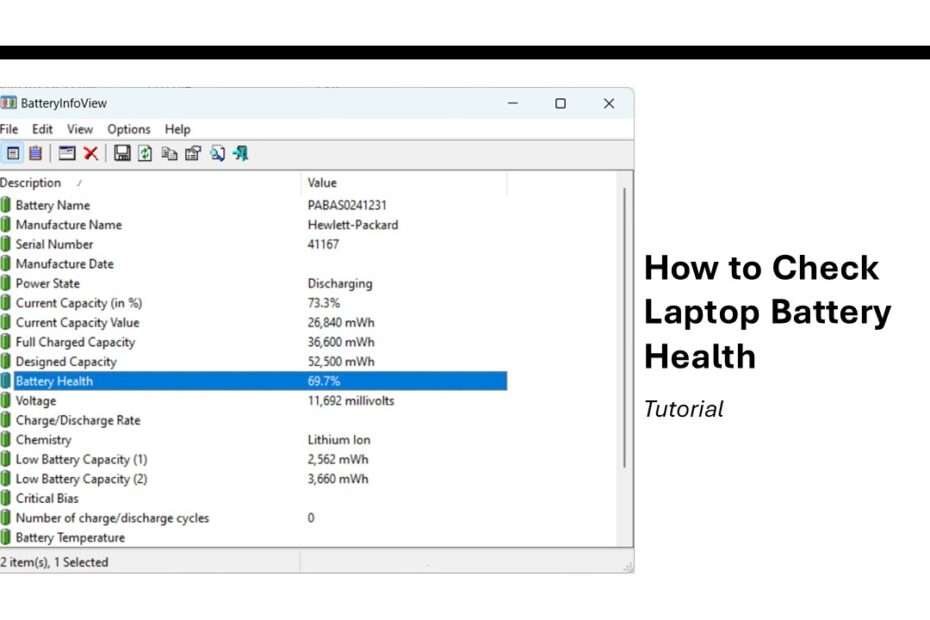
Battery health tells you how much charge the battery can hold now compared with when it was new. A worn battery may drain fast, shut down without warning, or show a much lower full-charge capacity than its original design capacity.
What laptop battery health means
Laptop battery health measures battery wear. It is not the same as the current battery percentage shown in the taskbar or menu bar.
Two values matter most:
- Design capacity: The amount of energy the battery could hold when new.
- Full-charge capacity: The amount of energy it can hold now.
You can estimate battery health with this formula:
Battery health (%) = Full-charge capacity ÷ Design capacity × 100
Example calculation
Suppose a laptop has:
- Design capacity: 50,000 mWh
- Full-charge capacity: 40,000 mWh
40,000 ÷ 50,000 × 100 = 80%
The battery health is about 80%. It may still work well, but it holds about 20% less energy than it did when new.
| Estimated health | General meaning |
|---|---|
| 90%–100% | Very little wear |
| 80%–89% | Normal aging |
| 60%–79% | Noticeable wear |
| Below 60% | Shorter run time is likely |
These ranges are practical guidelines, not universal repair rules. Battery life also depends on screen brightness, apps, temperature, processor load, and power settings.

How to check battery health in Windows 11 or Windows 10
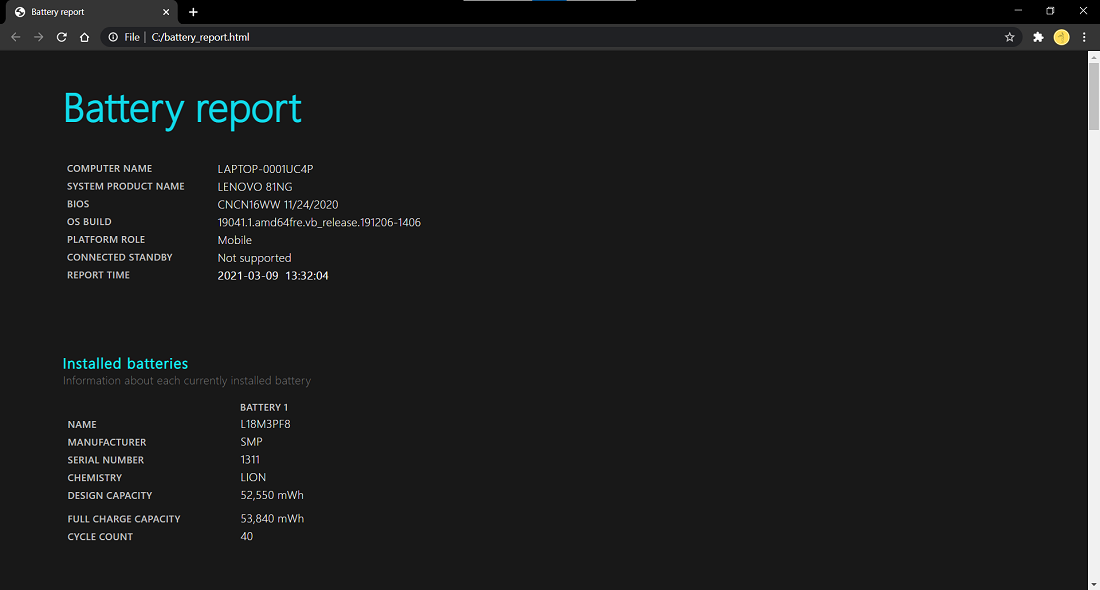
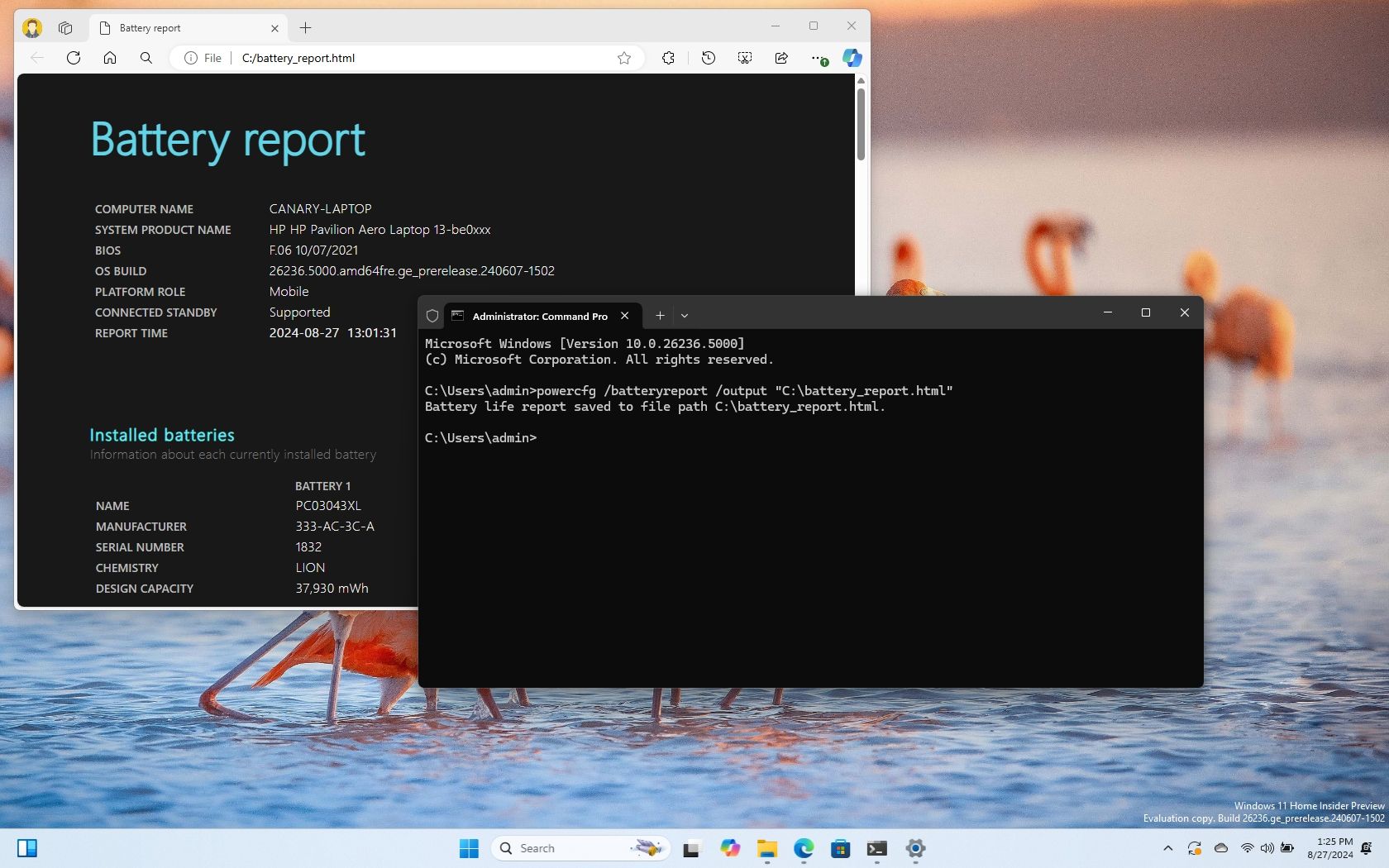
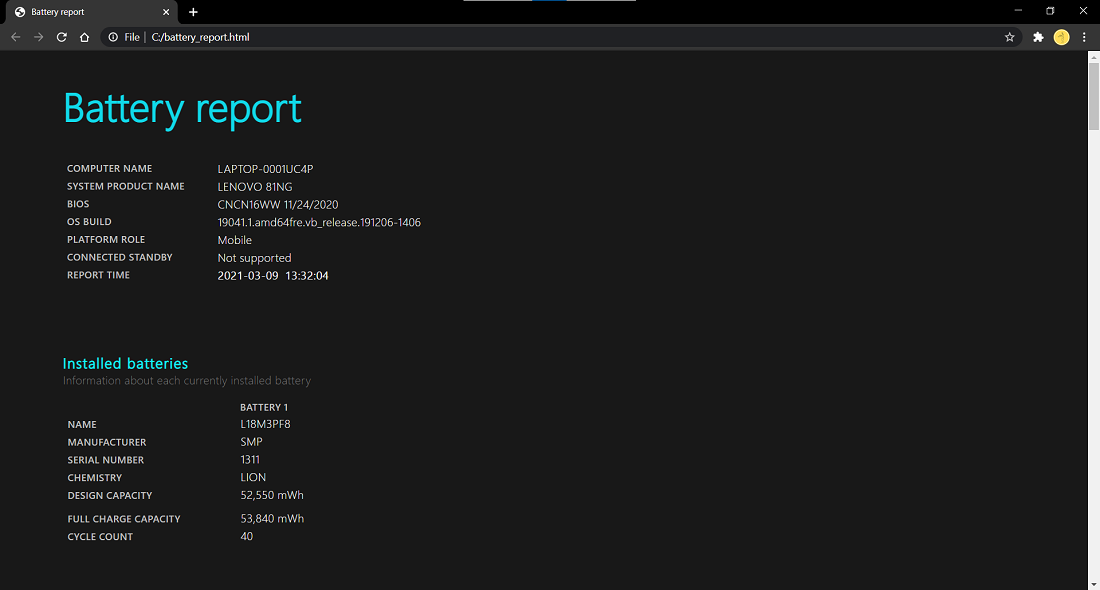
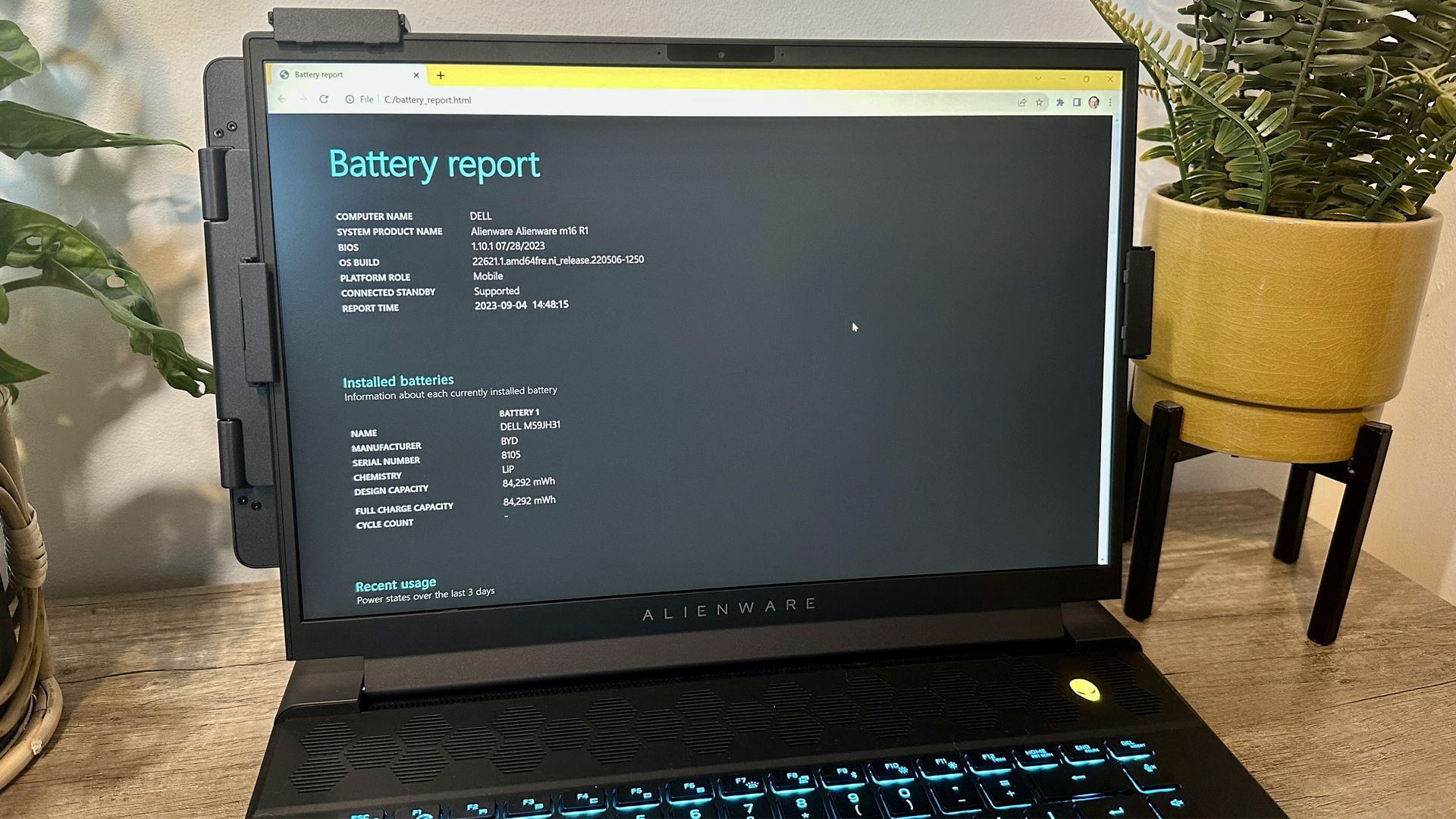
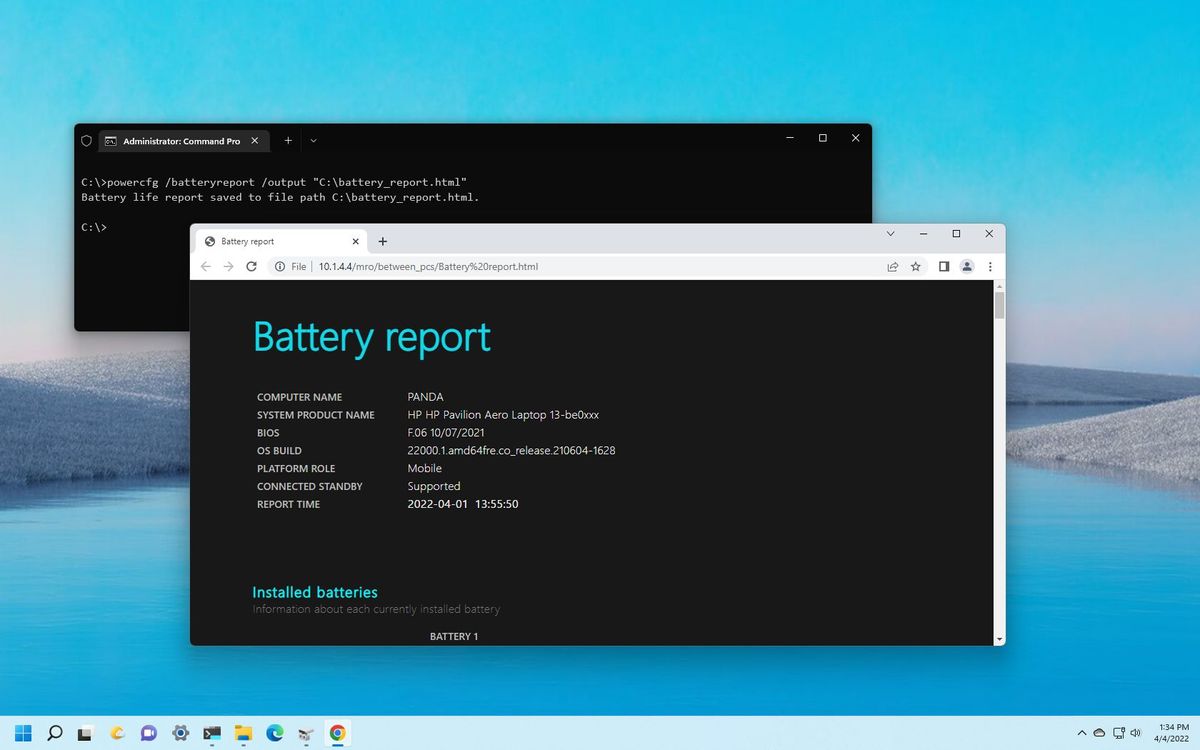
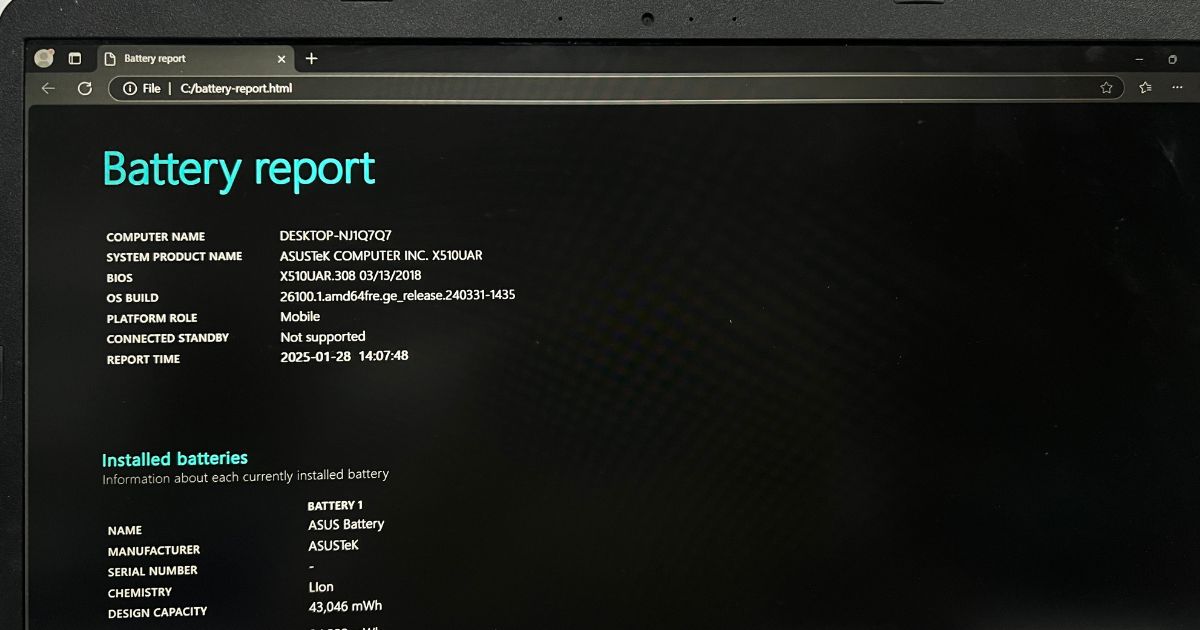
The most detailed built-in Windows method is the Battery Report. It shows the battery’s design capacity, current full-charge capacity, usage history, and estimated battery life.
Create a Windows battery report
- Press the Windows key.
- Type Command Prompt.
- Right-click Command Prompt and choose Run as administrator.
- Enter this command:
powercfg /batteryreport
- Press Enter.
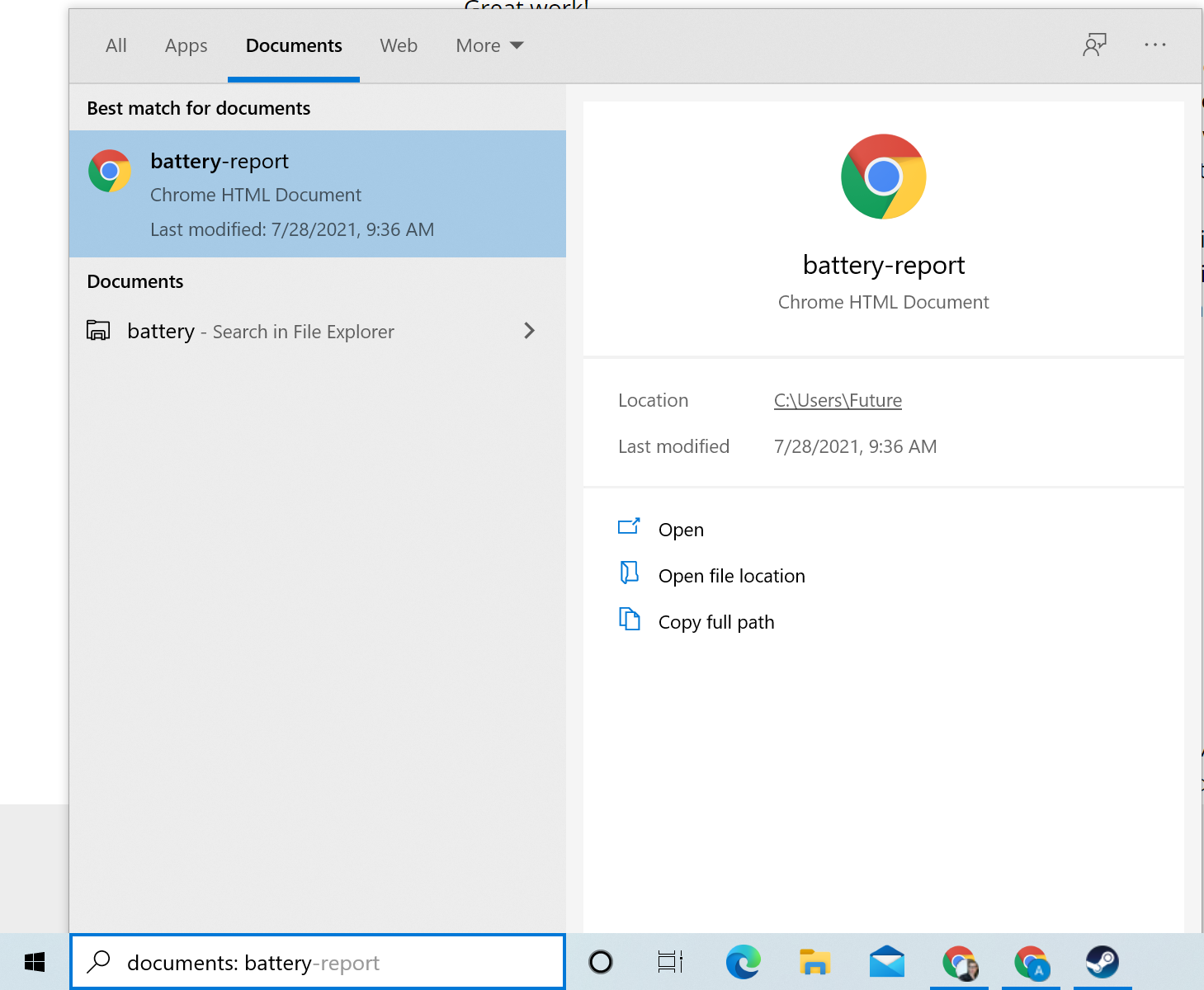
- Windows will display the location of the report. It is often saved here:
C:\Users\YourName\battery-report.html
- Copy the file path shown in Command Prompt.
- Paste it into the address bar in File Explorer or a web browser.
- Open the HTML report.
On some systems, you can save the report to a simpler location with this command:
powercfg /batteryreport /output "%USERPROFILE%\Desktop\battery-report.html"
The report should then appear on the Windows desktop.
Find the battery health values
Open the report and look for the Installed batteries section. Compare:
- Design Capacity
- Full Charge Capacity
Use the calculation above to estimate battery health.
For example:
38,500 mWh ÷ 50,000 mWh × 100 = 77%
This means the battery can hold about 77% of its original charge.
Check the cycle count
The report may also show a cycle count. One cycle means using a total of 100% of the battery’s capacity, though that use may happen over several charging sessions.
For example, using 50% one day and 50% the next day is roughly one cycle.
A cycle count alone does not prove that a battery needs replacement. Battery age, heat, storage conditions, charging habits, and battery design also affect wear.
Check health with the laptop maker’s app
Many Windows laptops include a support app with battery tools. Names vary by manufacturer. Common examples include:
- Dell SupportAssist or Dell Power Manager
- Lenovo Vantage
- HP Support Assistant
- MyASUS
- Acer Care Center
- Microsoft Surface diagnostic tools
These apps may show a condition such as Excellent, Good, Fair, or Replace. They may also provide a battery test in the system firmware or hardware diagnostics.
Use the manufacturer’s result with the Windows report. If the two disagree, check the laptop maker’s support page for your exact model.
What if the Windows report will not open?
Try these fixes:
- Run Command Prompt as an administrator.
- Use the full output command shown above.
- Check that the file ends in
.html. - Open the file with Microsoft Edge, Chrome, or another browser.
- Restart the laptop and create a new report.
- Install pending Windows and firmware updates.
- Run the manufacturer’s built-in battery test.
A missing battery report does not always mean the battery is bad. The issue may involve permissions, a driver, firmware, or a command error.
How to check battery health on a MacBook
macOS provides battery health information in System Settings. It can also show the battery’s cycle count and condition.
Check battery health in macOS
On a current MacBook:
- Open the Apple menu.
- Select System Settings.
- Choose Battery.
- Select Battery Health.
Depending on the macOS version and Mac model, you may see:
- Maximum Capacity
- Battery Condition
- Optimized Battery Charging
- A message recommending service
Maximum Capacity compares the battery’s current capacity with its capacity when new. For example, a maximum capacity of 82% means the battery holds about 82% of its original charge under Apple’s measurement system.
Older macOS versions may use this path:
- Open the Apple menu.
- Choose System Preferences.
- Select Battery.
- Choose Battery or Battery Health.
Check the MacBook cycle count
To view the cycle count:
- Hold the Option key.
- Click the Apple menu.
- Select System Information.
- In the sidebar, open Hardware.
- Select Power.
- Find Cycle Count and Condition.
The cycle limit varies by MacBook model. Apple publishes cycle-count limits for its products, so check the support page for your exact model rather than relying on a single number for all MacBooks.
A cycle count near the model’s listed limit suggests normal aging. It does not mean the battery will stop working at that exact count.
What Mac battery messages mean
- Normal: macOS does not detect a current battery problem.
- Service Recommended: The battery may hold less charge or may not work as expected.
- Replace Soon: The battery has reduced capacity.
- Replace Now: The battery may have very low capacity or a service issue.
The wording can differ by macOS version. If the Mac shows a service warning, back up important files and contact Apple or an authorized service provider.
How to check battery health on a Chromebook
Chromebooks include a built-in Diagnostics tool. It can show battery health, cycle count, current, voltage, and discharge information.
Use the Chromebook Diagnostics app
- Click the time in the lower-right corner.
- Select Settings.
- Choose About ChromeOS.
- Select Diagnostics.
- Open the Battery section.
You may see information such as:
- Battery health
- Cycle count
- Current battery level
- Battery discharge rate
- Battery capacity
- Charging status
The exact information can vary by Chromebook model and ChromeOS version.
Run a battery discharge test
The battery test can help show how quickly the charge drops during use. A high discharge rate may be normal when the Chromebook runs a game, video call, or many browser tabs.
For a more useful comparison:
- Charge the Chromebook.
- Disconnect the charger.
- Close unnecessary apps and tabs.
- Run the Diagnostics battery test.
- Record the result.
- Repeat later under similar conditions.
Do not treat one test as a precise prediction of daily battery life. Brightness, Wi-Fi use, video playback, extensions, and background tasks can change the result.
If Chromebook Diagnostics is missing
Try the following:
- Update ChromeOS.
- Restart the Chromebook.
- Search the app launcher for Diagnostics.
- Check whether the device is managed by a school or employer.
- Contact the Chromebook manufacturer if the battery does not charge or the device shuts down.

How to check battery health on Linux
Linux does not use one universal battery-health screen, but many distributions can report battery data through the terminal.
Use the upower command
Open Terminal and run:
upower -i "$(upower -e | grep BAT | head -n 1)"
Look for entries such as:
energy-full-designenergy-fullcapacitycharge-cyclesstatehealth
If the output includes capacity, Linux may already provide an estimated health percentage.
You can also list power devices with:
upower -e
Then inspect the battery device directly, for example:
upower -i /org/freedesktop/UPower/devices/battery_BAT0
The device path may differ.
Read battery data from the system files
Some Linux systems expose battery data here:
cat /sys/class/power_supply/BAT0/uevent
If the laptop uses another battery name, list the available devices:
ls /sys/class/power_supply/
Useful fields may include:
ENERGY_FULL_DESIGNENERGY_FULLCHARGE_FULL_DESIGNCHARGE_FULLCYCLE_COUNT
You can calculate health with:
Current full capacity ÷ Design capacity × 100
Do not compare energy values with charge values unless both measurements use the same type. For example, compare ENERGY_FULL with ENERGY_FULL_DESIGN, or compare CHARGE_FULL with CHARGE_FULL_DESIGN.
If Linux shows no battery data
Possible causes include:
- The laptop firmware does not expose the data.
- The battery driver is not loaded.
- The distribution uses a different power-management tool.
- The battery reports incomplete or inaccurate values.
- The device is a desktop or a laptop with a removable battery issue.
Avoid installing random battery utilities as root. Use software from your distribution’s official repositories when possible.
How to tell whether a laptop battery needs replacement
Battery health below 80% does not automatically mean you must replace it. Replace or service the battery when its reduced capacity affects your work or when safety symptoms appear.
Look for these signs:
- The laptop runs for much less time than it used to.
- The computer shuts down while the battery still shows charge.
- The battery percentage jumps up or down.
- The laptop will not charge past a low level.
- The battery warning says service is needed.
- The laptop becomes unusually hot during light use.
- The case, trackpad, or keyboard begins to lift.
Stop using a swollen battery
A swollen battery is a safety problem. If the laptop case bulges, the trackpad rises, or the bottom cover separates:
- Shut down the laptop if it is safe to do so.
- Disconnect the charger.
- Do not press, bend, puncture, or remove the battery.
- Keep the laptop away from heat and flammable items.
- Contact the manufacturer or a qualified repair provider.
- Follow local battery-recycling guidance.
Do not put a swollen lithium-ion battery in household trash or a standard recycling bin. In the United States, use a battery recycler or a service that accepts damaged lithium-ion batteries. Call local authorities if the battery is smoking, hissing, leaking, or burning.

How to improve laptop battery life
Battery health measures wear that has already occurred. These steps can help reduce further wear:
- Keep the laptop away from extreme heat.
- Use the manufacturer’s charge limit feature if available.
- Avoid blocking the air vents.
- Reduce screen brightness when practical.
- Close apps that use high processor or graphics power.
- Install operating system and firmware updates.
- Use the correct charger and cable.
- Do not leave a damaged charger or battery in use.
- Store a laptop that will not be used for months with a partial charge, following the manufacturer’s guidance.
Modern laptops manage charging automatically. You do not need to drain a lithium-ion battery to zero before charging it. Frequent deep discharges can add unnecessary wear.
Battery saver modes can extend daily run time, but they do not restore lost battery capacity.
Battery health versus battery life
These terms describe different things:
- Battery health: The battery’s long-term condition and remaining capacity.
- Battery life: How long the laptop runs on one charge.
- Battery percentage: The estimated charge remaining right now.
- Battery cycle count: The total amount of energy used over complete-charge equivalents.
A laptop with 90% battery health may still have poor battery life if a browser tab, game, video call, or failing component uses too much power. A laptop with 70% health may still last several hours during light work.
To find the cause, check both the health report and current power use.
Why battery health readings may be inaccurate
Battery readings are estimates. The battery-management system measures voltage, current, temperature, and charging history to estimate capacity.
The reading may change after:
- A firmware update
- A battery calibration process
- Several full charge and discharge cycles
- Long periods connected to a charger
- A battery replacement
- Very hot or cold conditions
Do not repeatedly drain a battery to zero to “calibrate” it. If the manufacturer recommends calibration for your model, follow its exact procedure. Otherwise, use the health reading as a practical estimate rather than an exact laboratory measurement.
Quick troubleshooting table
| Problem | Likely causes | Useful next step |
|---|---|---|
| Battery drops quickly | High brightness, demanding apps, worn battery | Check power use and battery capacity |
| Battery stays at 0% | Charger, port, battery, or firmware problem | Test another compatible charger and run hardware diagnostics |
| Battery stops at 80% | Charge limit or battery-protection feature | Check the manufacturer’s power settings |
| Battery percentage jumps | Calibration or battery fault | Restart, update firmware, and run a battery test |
| Laptop shuts down suddenly | Worn battery, heat, or power fault | Back up data and seek service if it repeats |
| Case is bulging | Swollen battery | Stop using it and arrange qualified service |
| Report shows no capacity | Driver, firmware, or unsupported hardware | Check the maker’s diagnostic tool |
Frequently asked questions
How often should I check my laptop battery health?
Check it when battery life changes, the laptop shuts down unexpectedly, or you plan to buy a used laptop. For a laptop that works normally, checking once or twice a year is usually enough.
Is 80% battery health still good?
Yes. Around 80% usually means the battery has normal wear but remains usable. Replace it when the shorter run time causes problems or the manufacturer recommends service.
Does leaving a laptop plugged in damage the battery?
Modern laptops control charging and usually stop charging when the battery reaches its set limit. However, heat can speed up battery aging. Use a charge-limit or battery-protection feature if the manufacturer provides one.
Should I replace a laptop battery or buy a new laptop?
A battery replacement may make sense when the laptop still meets your needs, receives security updates, and has no other major faults. A new laptop may be more practical when the device is slow, unsupported, damaged, or expensive to repair.
Can I check battery health without turning on the laptop?
Sometimes. Many laptops show battery or hardware diagnostics in the UEFI or BIOS menu. Shut down the laptop, turn it on, and press the setup key listed by the manufacturer, often F2, F10, F12, or Delete. The exact menu varies by model.
Final recommendation
Use the built-in tool for your operating system:
- Windows: Create a report with
powercfg /batteryreport. - MacBook: Open System Settings > Battery > Battery Health.
- Chromebook: Open Settings > About ChromeOS > Diagnostics > Battery.
- Linux: Use
upoweror the battery data under/sys/class/power_supply/.
Compare the current full-charge capacity with the design capacity, then consider real symptoms. If the battery is swollen, hot, leaking, or lifting the case, stop using the laptop and arrange professional service.