What Is A Smart TV: Complete Beginner’s Guide
Introduction
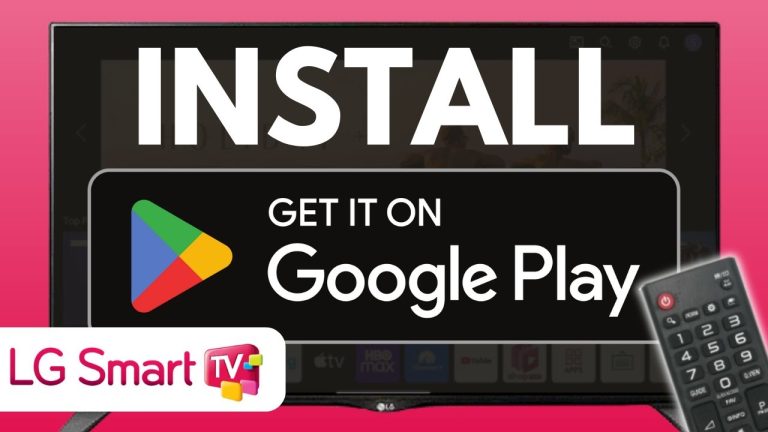
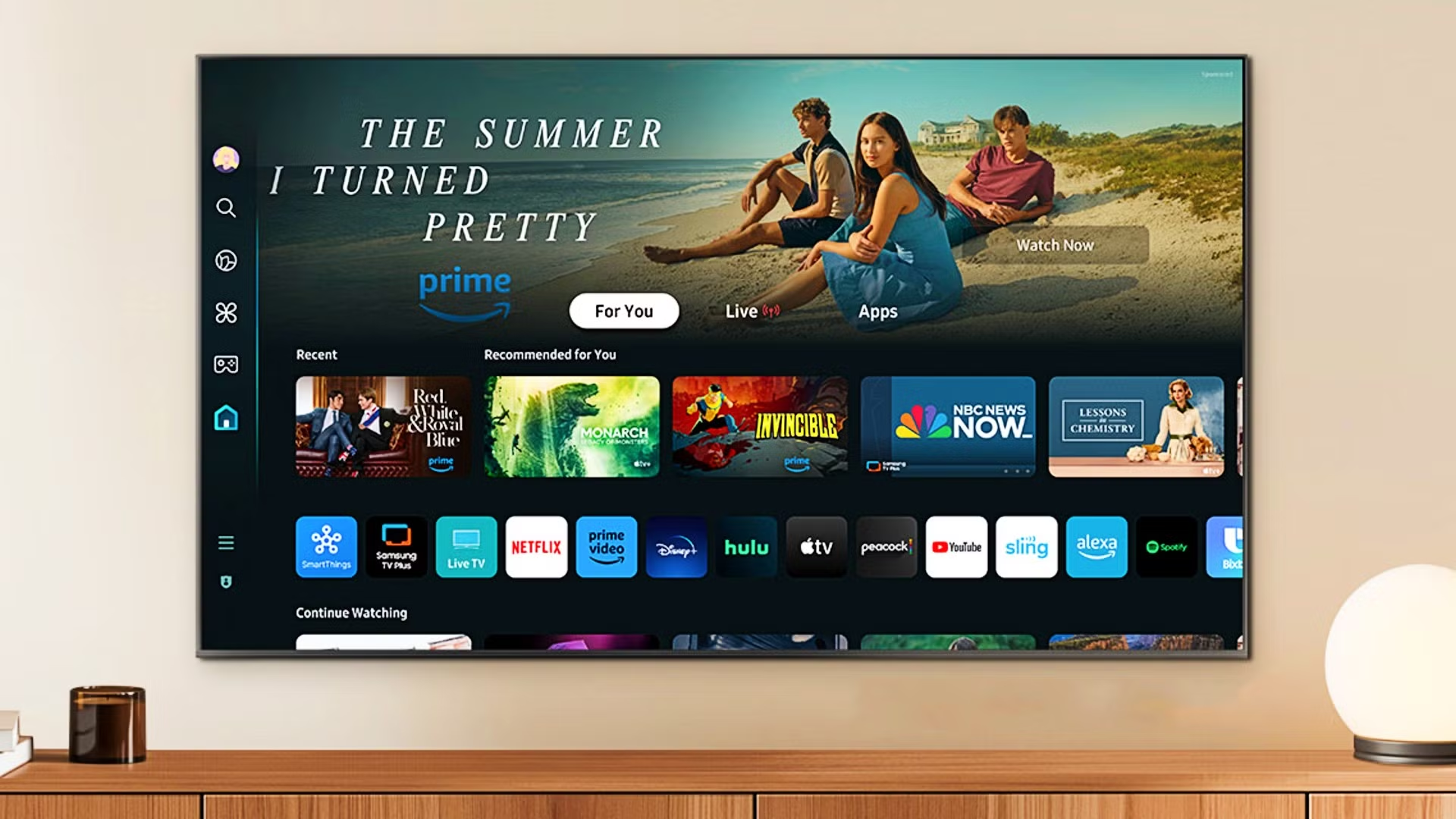
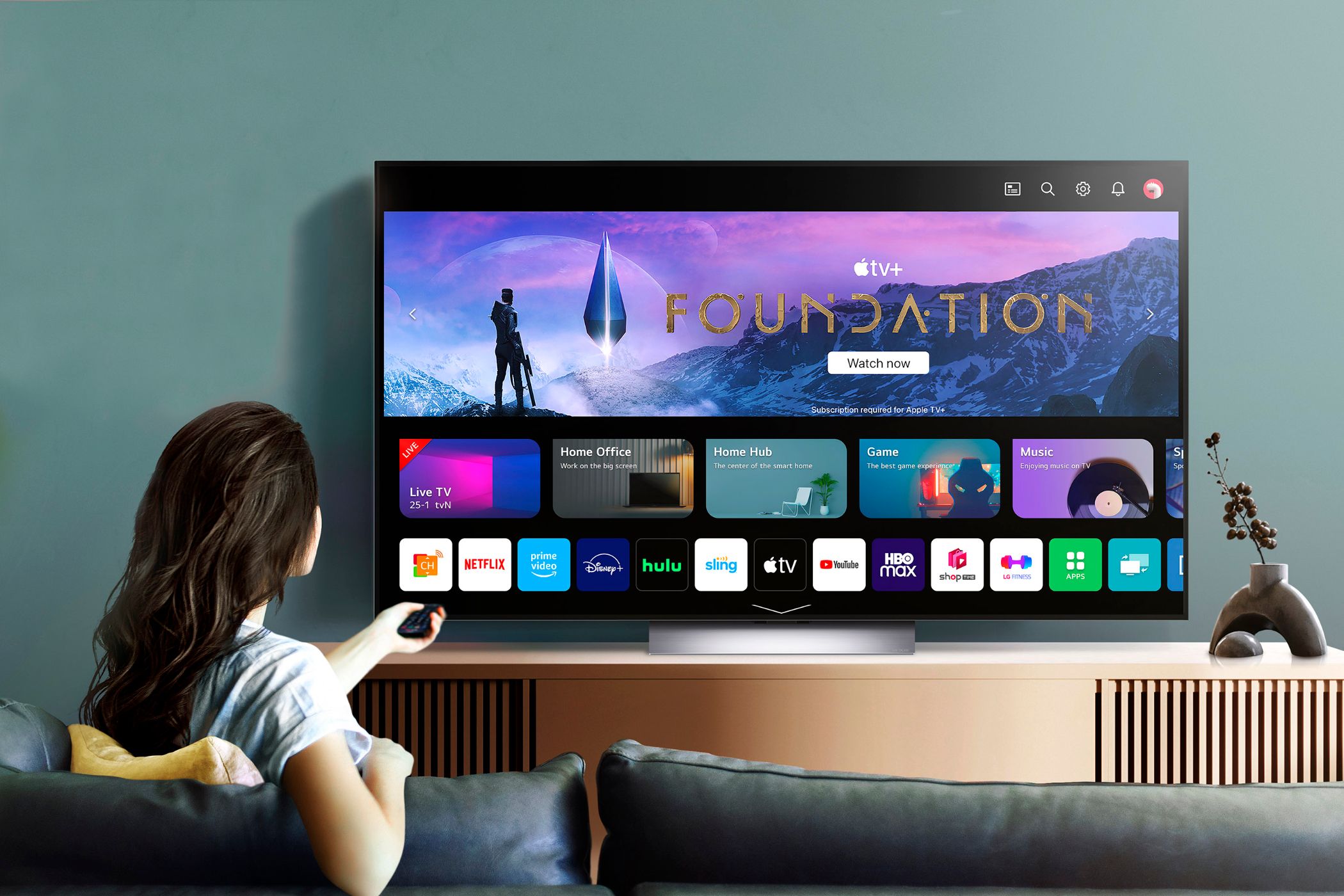
A smart TV is a television with built-in internet access, an operating system, and apps for streaming and other online services. In the United States, a smart TV can replace some functions of a separate streaming device by letting you watch services such as Netflix, YouTube, Hulu, Disney+, Max, and Prime Video directly on the TV.
A smart TV can also connect to Wi-Fi, receive software updates, support voice control, mirror a phone screen, and connect with devices such as game consoles and soundbars. However, it still needs an internet connection for most online features, and some apps or services may require a paid subscription.

How Does a Smart TV Work?
A smart TV combines three main parts:
- A display for showing video.
- An operating system for running menus and apps.
- Network hardware for connecting to the internet.
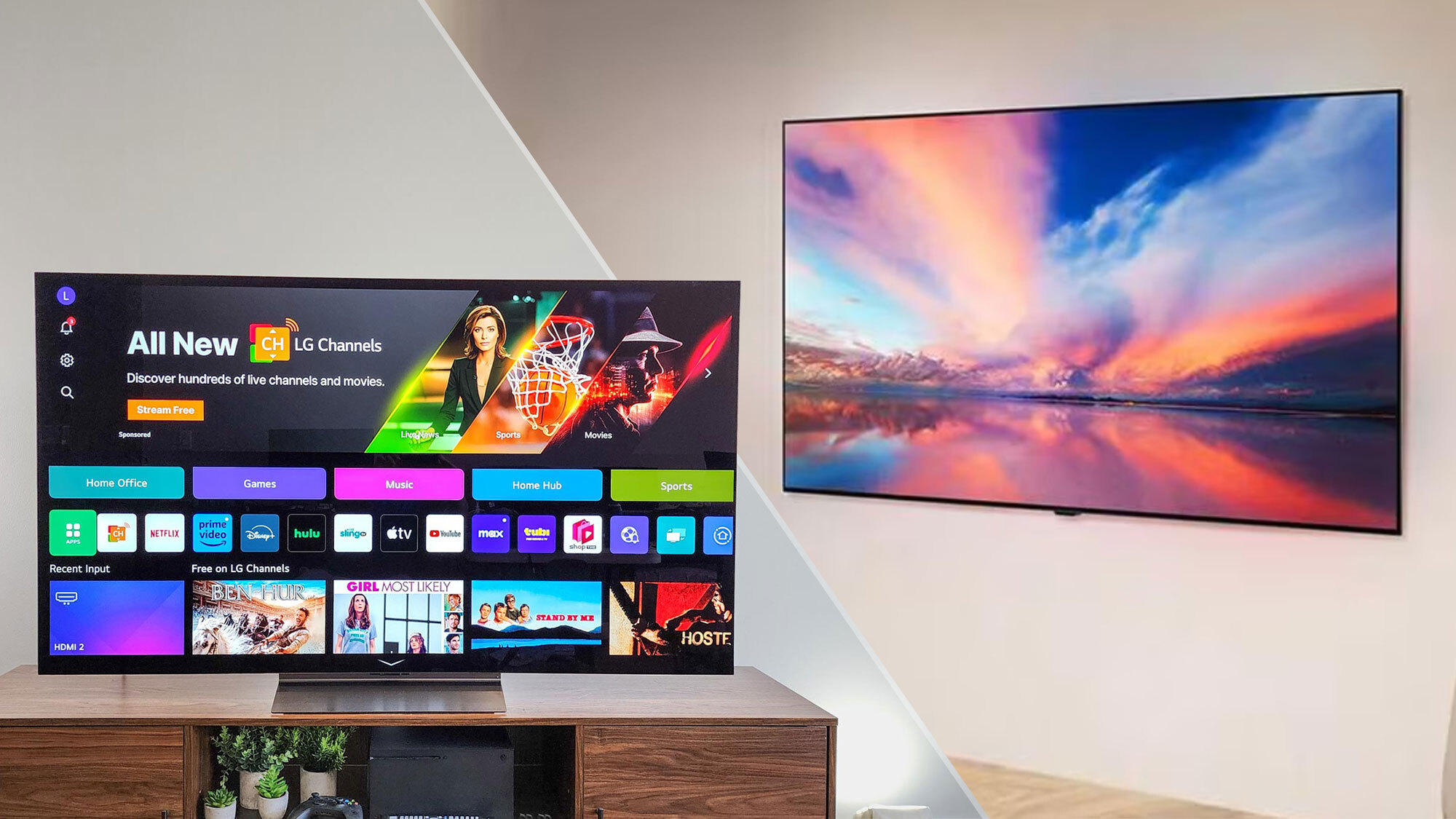
The operating system works much like the software on a smartphone. It controls the home screen, app store, settings, updates, voice features, and connected devices.
When you open a streaming app, the TV uses your internet connection to receive video and sound. The TV then decodes that data and displays it on the screen. The quality you see depends on several factors:
- Your internet speed.
- Wi-Fi strength.
- The streaming service and plan.
- The TV’s screen resolution.
- The video format supported by the TV.
- The quality of the content itself.
A smart TV does not create free access to paid services. You still need an account and, in many cases, a monthly subscription.
What Can You Do With a Smart TV?
A smart TV can do more than show cable channels. Its features vary by brand and model, but common uses include the following.
Stream movies and TV shows
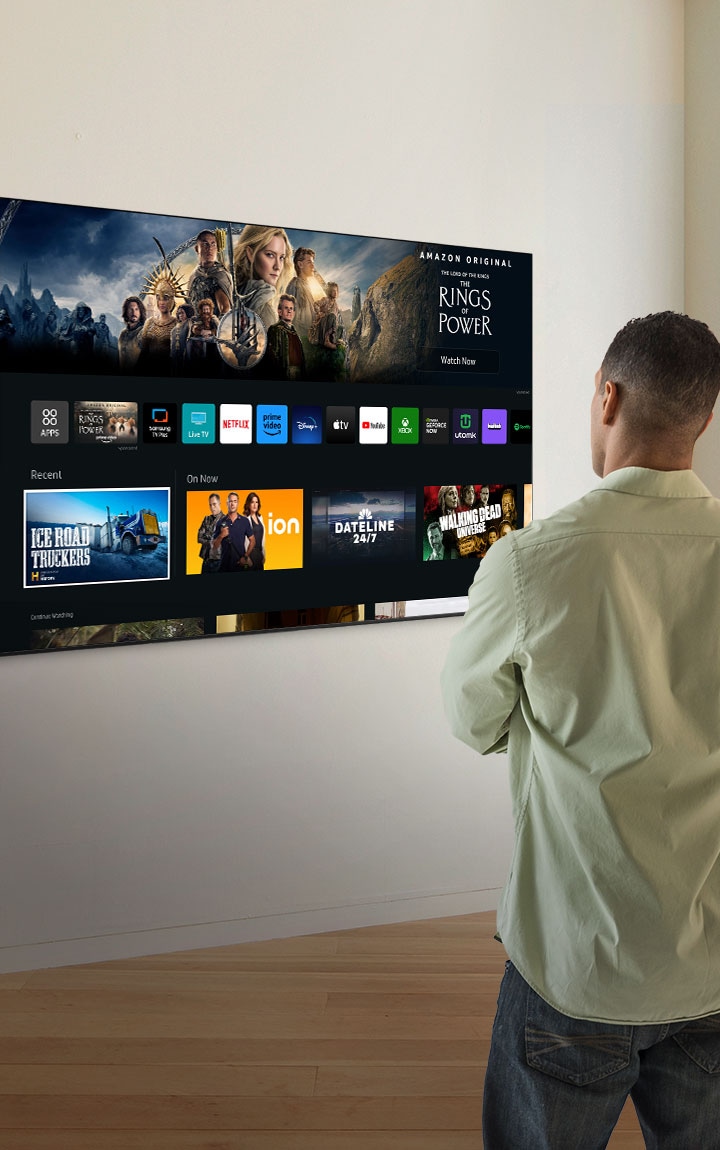
You can install apps for popular streaming services. Many smart TVs also include free, ad-supported services. These may offer news, older shows, movies, or live channels without a monthly fee.
Free services usually earn money through advertising. Their content libraries can change over time.
Watch live TV
A smart TV can show live television in several ways:
- An antenna can receive local broadcast channels.
- A cable or satellite box can connect through HDMI.
- A live TV streaming service can deliver channels through an app.
- Some free services offer internet-based live channels.
An antenna does not require an internet connection, but reception depends on your location, antenna placement, nearby buildings, and local broadcast signals.
Play music and podcasts
Many smart TVs support music and podcast apps. You can listen through the TV speakers or send sound to a soundbar, receiver, or Bluetooth headphones if the model supports Bluetooth audio.
Use voice search and voice control
Some smart TVs include a voice remote. You may be able to search for a movie, open an app, adjust the volume, or control compatible smart-home devices.
Voice features may send recordings or text versions of commands to a service provider. Review the TV’s privacy settings if that concerns you.
Cast or mirror a phone screen
Many models support casting or screen mirroring from a phone, tablet, or computer. These features are not always the same:
- Casting sends selected content from an app to the TV.
- Screen mirroring shows much of the phone or computer screen on the TV.
- AirPlay is a wireless sharing feature commonly used with Apple devices.
- Chromecast built-in or Google Cast allows supported apps and devices to send content to the TV.
Compatibility depends on the TV, phone, app, operating system, and home network.
Connect game consoles and other devices
A smart TV can connect to:
- PlayStation and Xbox consoles.
- Nintendo Switch systems.
- Blu-ray players.
- Cable boxes.
- Soundbars and AV receivers.
- Computers.
- Streaming sticks and media players.
Most connections use HDMI. Newer gaming features may include a high refresh rate, automatic low-latency mode, and variable refresh rate. These features vary by model and HDMI port.
Smart TV vs. Regular TV: What Is the Difference?
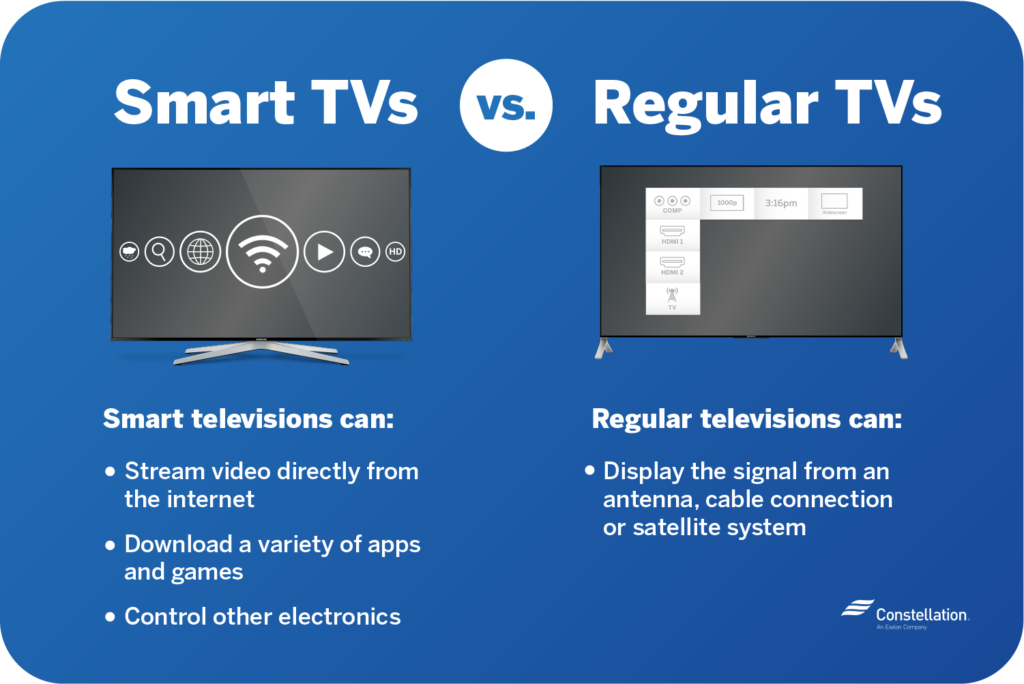
The main difference is built-in software and internet access.
| Feature | Smart TV | Basic or “dumb” TV |
|---|---|---|
| Built-in streaming apps | Usually available | Usually not available |
| Internet connection | Built in | Usually not built in |
| App updates | Supported by the TV platform | Not applicable |
| Local antenna channels | Available with an antenna | Available with an antenna |
| HDMI devices | Supported | Supported |
| Voice features | Often available | Usually not available |
| Separate streaming device needed | Not always | Usually needed for streaming |
A basic TV can still show movies and online video when connected to a streaming device. For example, a Roku, Apple TV, Fire TV Stick, or Google TV streamer can add smart features through an HDMI port.
This means a smart TV is not always the only way to stream. The better choice depends on price, ease of use, app support, update policy, and how long you plan to keep the TV.
Smart TV vs. Streaming Device
A smart TV and a streaming device can provide similar apps, but they are not identical.
Smart TV advantages
A smart TV may offer:
- Fewer devices near the television.
- One remote for many functions.
- Built-in apps.
- Integrated voice search.
- A simple setup for casual viewers.
Streaming device advantages
A separate streaming device may offer:
- A faster or cleaner interface.
- More frequent software updates.
- Better app support.
- Easier replacement when the device becomes slow.
- A way to add streaming to an older TV.
A useful setup is a smart TV with a separate streaming device. You can use the built-in system for basic viewing and switch to the external device if its apps or interface work better.
The TV’s built-in apps and the external device may also support different versions of the same service. Check the service’s support page before buying if one app is essential to you.
Do Smart TVs Need the Internet?
A smart TV does not need the internet for every task. It needs internet access for online features such as:
- Streaming movies and shows.
- App downloads.
- Software updates.
- Voice search.
- Online music.
- Screen casting in many setups.
- Internet-based live TV.
You can often use a smart TV without internet for:
- Watching antenna channels.
- Using an HDMI-connected device.
- Playing media from some USB devices.
- Watching content from a cable or satellite box.
Without internet access, the TV may show setup messages or repeatedly ask you to connect. Some models let you skip network setup, while others offer fewer options until you connect.
Wi-Fi or Ethernet?
Wi-Fi is convenient and works well when the TV is close to the router. An Ethernet cable may provide a more stable connection when the TV is far from the router or separated by thick walls.
If video pauses often, test the network before blaming the TV. A weak signal, busy home network, outdated router, or service outage can cause buffering.
What Internet Speed Does a Smart TV Need?
There is no single speed that works for every household. The need changes with video quality and the number of devices using the connection.
As a general guide:
- Standard-definition video uses less data.
- High-definition video needs more stable bandwidth.
- 4K video needs a stronger connection than HD.
- Several streams at the same time increase the total demand.
Streaming services publish their own speed guidance. Netflix, for example, provides service-specific recommendations for different video qualities. Those recommendations are a useful starting point, not a guarantee. Wi-Fi interference and network congestion can still cause problems.
For a rough example, if one 4K stream needs about 15–25 Mbps under a service’s guidance, two simultaneous streams could require about 30–50 Mbps of available capacity before other household use. This is a planning example, not a universal requirement.
What Is the Operating System on a Smart TV?
The operating system is the software platform that runs the TV. Common platforms in the U.S. include:
- Roku TV.
- Google TV and Android TV.
- Amazon Fire TV.
- Samsung Tizen.
- LG webOS.
- Vizio’s current smart TV platform, which may vary by model and year.
The operating system affects:
- Which apps are available.
- How the home screen works.
- How often the TV receives updates.
- Whether voice assistants are supported.
- How well the TV works with phones and smart-home products.
- How long the interface remains responsive.
Do not assume that every TV with the same brand name uses the same software. A brand may use different platforms across product lines or change platforms in later model years.
App support can also change. A service available today may later stop supporting older hardware or software. This is one reason some owners use a replaceable streaming device.
Are Smart TVs Safe and Private?
A smart TV is a networked computer with a large screen. It can collect some information about device use, app activity, voice commands, advertising interactions, and viewing habits, depending on the model, settings, and services you use.
This does not mean every smart TV collects the same data. Read the privacy screens during setup and check the TV’s settings for:
- Automatic content recognition.
- Personalized advertising.
- Voice recording or voice history.
- App permissions.
- Device connection permissions.
- Diagnostic data sharing.
- Location access.
- Camera or microphone access, if included.
Steps to improve smart TV privacy
- Connect the TV to a secure home network.
- Use a strong Wi-Fi password.
- Install software updates from the TV’s settings.
- Remove apps you no longer use.
- Turn off voice or microphone features if you do not need them.
- Review advertising and viewing-data settings.
- Avoid entering sensitive information into unknown apps.
- Reset the TV before selling or giving it away.
The Federal Trade Commission and the Cybersecurity and Infrastructure Security Agency offer general guidance on connected-device security. TV menus differ, so use the manufacturer’s current support instructions for exact steps.
Does a smart TV have a camera?
Most smart TVs do not include a built-in camera. Some may work with an optional USB camera or another external device for video calls.
A microphone may be built into the TV or remote. Check the product specifications and privacy settings if this feature matters to you.
Do Smart TVs Have Monthly Fees?
The TV itself usually does not require a monthly smart-TV fee. However, you may pay for:
- Home internet service.
- Streaming subscriptions.
- Live TV streaming services.
- Premium movie or sports services.
- Rental or purchase fees for individual content.
Some free apps show advertisements. Paid services may also include ads, depending on the plan.
Before buying a TV, list the services you already use. A lower-cost TV can become more expensive over time if it requires a service, accessory, or external device that you did not expect.
How to Set Up a Smart TV
Most smart TVs can be set up in a few basic steps.
1. Place and connect the TV
Set the TV on a stable surface or mount it according to the manufacturer’s instructions. Connect the power cable and any devices, such as:
- Cable box.
- Game console.
- Antenna.
- Soundbar.
- Blu-ray player.
Use the correct HDMI port for features such as eARC, 4K video, or high refresh rates.
2. Turn on the TV and choose settings
Select your language, country, time zone, and viewing preferences. Choose the United States when the setup asks for your region so the TV can show the correct apps and broadcast settings.
3. Connect to Wi-Fi or Ethernet
Select your home network and enter the password. If the router is close enough, compare Wi-Fi with Ethernet if the TV supports a wired connection.
4. Sign in to the TV platform
Some TVs let you use basic functions without creating an account. Others request an account for app downloads, voice tools, cloud features, or device management.
Use a unique password. Do not reuse your email password if the TV platform offers account access.
5. Install updates
Run the TV’s software update before judging its speed or features. Updates can improve compatibility, fix errors, and change menus.
6. Install the apps you use
Download only the services you need. Fewer apps can make the home screen easier to manage.
7. Sign in to streaming services
Use a phone or computer to activate apps when the TV provides a code. Confirm that the app belongs to the correct service before entering your sign-in details.
8. Set up the remote and sound
Test volume control, input switching, captions, and audio output. If you use a soundbar, select the proper audio setting and HDMI port.
Signs that setup worked
- The TV connects to the internet.
- An app opens and plays a short video.
- The remote controls volume and inputs.
- Antenna channels scan correctly, if applicable.
- The sound comes from the intended speaker.

How to Fix Common Smart TV Problems
Start with the simplest and safest checks. Do not open the TV or remove its back panel. Internal parts can hold dangerous electrical charge, even when the TV is unplugged.
The TV will not connect to Wi-Fi
Possible causes include a wrong password, weak signal, router problems, or a temporary service issue.
Try these steps:
- Confirm that other devices can use the same Wi-Fi network.
- Check the Wi-Fi password.
- Move the router or TV closer together if possible.
- Restart the router and TV.
- Forget the network on the TV, then connect again.
- Test Ethernet if the TV has a network port.
- Check the TV manufacturer’s service status or support page.
If other devices also fail, the problem may be the router or internet service rather than the TV.
An app will not open
Try opening another app. If only one app fails, the service may have an outage or the app may need an update.
You can also:
- Close and reopen the app.
- Restart the TV.
- Update the app and TV software.
- Sign out and sign in again.
- Remove and reinstall the app, if the TV allows it.
The picture buffers or looks poor
Buffering can result from weak Wi-Fi, network congestion, a service outage, or a problem with the streaming app.
Test another title and another app. If all services buffer, check the network. If one service fails, check that service’s support page.
The TV is slow
A slow interface may come from old hardware, many installed apps, low available storage, pending updates, or a software problem.
Restart the TV fully rather than leaving it in standby. Remove unused apps and install updates. If the TV remains slow, an external streaming device may provide a faster interface without replacing the display.
The remote does not work
Replace the batteries and remove objects blocking the TV’s sensor. If it is a Bluetooth remote, pair it again using the TV’s instructions.
A phone remote app may work as a temporary option, but the phone and TV often need to be on the same network.
The TV has sound but no picture
Check the selected input, HDMI cable, and connected device. Try another HDMI port if available.
If the TV’s own menus also fail to display, unplug it for a short period and restart it. A persistent black screen may require manufacturer support or professional repair.
How to Choose a Smart TV
Choose the TV platform first, then compare picture, sound, size, connections, and long-term use.
1. Check the apps you need
Make a list of essential services. Confirm that each one works on the exact TV platform and model range you are considering.
Do not rely only on a store label such as “smart TV.” App support can differ by region, operating system, and model year.
2. Pick the right screen size
Measure the room and viewing position. A bigger screen is not automatically better if it overwhelms the space or sits too close.
For a wall-mounted TV, check:
- Wall strength.
- Mount compatibility.
- Cable placement.
- Viewing height.
- Access to ports and power.
3. Compare screen resolution
Most current smart TVs use HD, 4K, or, in some cases, 8K resolution.
For many U.S. homes, 4K is a practical choice because it is widely available and supports a large range of content. Resolution alone does not determine picture quality. Brightness, contrast, color, panel type, processing, and viewing angle also matter.
4. Consider room brightness
A bright room may need a screen that handles reflections well and becomes bright enough for daytime viewing. A darker room may benefit more from strong contrast and deep black levels.
Look at the TV in conditions similar to your room when possible. Store lighting can make screens appear different from how they look at home.
5. Check HDMI ports
Count the devices you plan to connect. You may need ports for:
- A game console.
- A cable box.
- A soundbar.
- A streaming device.
- A Blu-ray player.
Look for HDMI eARC if you want advanced audio connection with a compatible soundbar or receiver. Gamers should check whether the needed HDMI port supports their console’s resolution and refresh-rate features.
6. Review the update and support policy
Ask:
- How long will the TV receive software updates?
- Can apps be removed or reinstalled?
- Is the warranty clear?
- Is customer support available in the United States?
- Can the TV work with an external streaming device later?
A TV is a long-term purchase. Current app support matters, but future support matters too.
7. Plan for sound
Thin TVs often have limited space for speakers. If clear dialogue or strong sound matters, budget for a soundbar or another audio system.
Check whether the TV supports the connection your sound system needs, such as HDMI eARC, optical audio, or Bluetooth.
Common Smart TV Mistakes
Assuming “smart” means free
Smart features provide access to apps. They do not make paid movies, sports, or subscription services free.
Ignoring the home network
A good TV cannot fix a weak Wi-Fi signal. Place the router well, reduce interference, and use Ethernet when practical.
Buying based only on screen size
Size affects comfort, but it does not tell you how good the picture, software, sound, or support will be.
Forgetting future app support
An older TV may keep working as a display even if its built-in apps become slow or unsupported. Check update information before purchase.
Installing every app
Extra apps can clutter the interface and may request permissions you do not need. Install only trusted services.
Skipping privacy settings
Fast setup is convenient, but it can lead to broad data-sharing choices. Read each privacy screen and change settings you do not want.
Throwing away the remote too soon
Some TV functions are difficult to access without the original remote. Keep it in a safe place, especially before selling or resetting the TV.
Key Takeaways
- A smart TV is an internet-connected television with built-in software and apps.
- It can stream video, play music, show antenna channels, and connect to other devices.
- Most online features need Wi-Fi or Ethernet.
- Paid streaming services still require separate subscriptions.
- A smart TV is not always better than a basic TV with a separate streaming device.
- Check app support, updates, privacy settings, HDMI ports, and sound before buying.
- If built-in apps become slow, an external streaming device may extend the useful life of the TV.
Frequently Asked Questions
Can I use a smart TV without cable?
Yes. You can use a smart TV with internet streaming apps, an antenna, or other HDMI devices. You do not need cable television service, but paid streaming services and internet service may still cost money.
Can I use a smart TV without Wi-Fi?
Usually, yes. You can use an antenna, cable box, game console, or other HDMI device. You will not be able to use most online apps without internet access.
Do I need Roku if I already have a smart TV?
No. A smart TV already has built-in streaming software. You may still prefer a Roku, Apple TV, Fire TV, or Google TV device if it offers a faster interface, better app support, or features missing from the TV.
Can a smart TV get local channels?
Yes, but the method matters. An antenna can receive local over-the-air broadcasts where signals are available. A cable provider or live TV streaming service may offer additional local and national channels.
Does a smart TV use more internet data?
It can. Streaming video uses internet data, especially at high resolution. The amount depends on video quality, viewing time, service settings, and the number of people streaming at once.
How long does a smart TV last?
There is no fixed lifespan for every model. The display may continue working after built-in apps become slow or unsupported. Keeping the software updated and using a replaceable streaming device can help extend the TV’s practical use.
Should I buy a smart TV or a regular TV?
Choose a smart TV if you want built-in apps and simple setup. Choose a basic TV with a streaming device if you want more control over the software or easier future upgrades. Compare the total cost, not just the TV price.
Conclusion
A smart TV is a television that combines a screen with internet access, apps, and an operating system. It can stream content, support voice search, connect to phones and consoles, and work with antenna or cable television.
The best choice depends on how you watch TV. Check the apps you need, your internet setup, privacy preferences, sound plans, HDMI needs, and future software support. If the built-in system later becomes slow, a separate streaming device can often solve the problem without replacing the screen.