Best Monitors For Mac Mini: Smart Buying Guide
The best monitors for Mac Mini deliver sharp 4K detail, easy connections, and comfortable all-day viewing.
A Mac Mini gives you strong performance in a small box, but it does not include a screen. That can make choosing a display hard, especially when you want clear text, rich color, and simple setup without spending more than needed. I compared five strong 27-inch monitors for work, photo editing, streaming, and daily Mac use. These picks include 4K IPS screens, USB-C options, adjustable stands, and eye-care features. Whether you own an M-series Mac Mini or an older model, this guide can help you find the right display for your desk.
See the differences between my top picks at a glance.
Dell S2725QC 4K USB-C Monitor

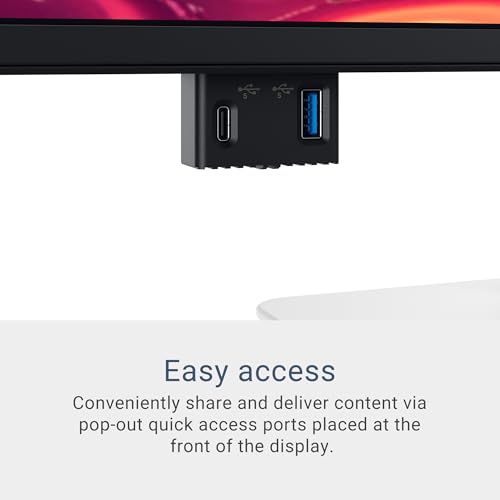
The Dell S2725QC is my top pick for most Mac Mini owners. Its 27-inch 4K IPS panel gives text a crisp look and leaves plenty of room for two windows side by side. The 120Hz refresh rate also makes scrolling feel smooth. With 99% sRGB coverage, it suits office work, web design, light photo edits, and media use.
This monitor offers USB-C, HDMI, and DisplayPort connections, so it fits many desk setups. Its anti-glare coating and eye comfort features help during long work sessions. FreeSync Premium may also help reduce tearing with compatible devices and content. I like this model because it balances image quality, motion smoothness, useful ports, and a clean design.
Pros:
- Sharp 4K resolution with high pixel density
- Smooth 120Hz refresh rate
- USB-C, HDMI, and DisplayPort inputs
- 99% sRGB coverage for natural color
- Anti-glare surface for bright rooms
- Eye comfort features for long sessions
- Useful choice for work, media, and casual gaming
Cons:
- The USB-C feature set should be checked if you need laptop charging or video over one cable
- Built-in speakers are not listed in the supplied specifications
- A 27-inch screen may feel small for users who prefer a very large workspace
What Amazon Buyers Are Saying
Buyer feedback for this type of Dell display often centers on sharp 4K text, smooth motion, and easy setup. Many users also value the simple look and the mix of modern ports. Common concerns in monitor reviews include checking the exact USB-C functions and adjusting color settings to match personal taste. As with any LCD, buyers should inspect the panel after delivery for uniformity and dead pixels.
My Recommendation
I recommend the Dell S2725QC for Mac Mini users who want one well-rounded monitor. It is especially strong for office work, coding, browsing, and mixed daily use. Its 120Hz rate gives it a clear edge over basic 60Hz displays. Buy it if you want smooth movement and 4K detail without moving to a gaming-focused screen.
| Category | Rating |
|---|---|
| 4K image quality | 4.7/5 |
| Motion smoothness | 4.7/5 |
| Connectivity | 4.4/5 |
| Comfort and design | 4.5/5 |
| Overall Rating | 4.6/5 |
Dell S2725QS 4K Adjustable Monitor

The Dell S2725QS is a strong choice when desk comfort matters as much as image quality. It uses a 27-inch 4K IPS panel with 99% sRGB coverage. Its listed 350 cd/m² brightness can work well in many indoor spaces. The 120Hz refresh rate keeps cursor movement, window dragging, and scrolling fluid.
This model stands out for its height adjustment, swivel, and pivot movement. That makes it easier to set the top of the screen near eye level or rotate the display for long documents. It includes HDMI, DisplayPort, and USB-C according to the supplied listing. Its 1,500:1 contrast specification may also help dark scenes look more defined than on some basic IPS screens.
Pros:
- Detailed 4K UHD picture
- 120Hz refresh rate for smooth daily use
- Height-adjustable ergonomic stand
- Swivel and pivot support
- 99% sRGB color coverage
- 350 cd/m² listed brightness
- Good fit for coding, documents, and multitasking
Cons:
- The stand takes more desk depth than a simple fixed stand
- USB-C features should be confirmed for your exact Mac Mini setup
- It may offer more stand movement than casual users need
What Amazon Buyers Are Saying
Reviews of monitors in this Dell range commonly praise the clear image, sturdy stand, and easy viewing-angle changes. Buyers who work with text often notice the benefit of 4K sharpness on a 27-inch panel. Some users may find the on-screen menu less exciting than the display itself, while others may need time to tune brightness. Always compare the current listing details before buying, since port behavior and included cables can vary by package.
My Recommendation
I recommend the S2725QS for users who spend many hours at a desk and want a flexible stand. It is a better ergonomic pick than a fixed-screen model. The image is sharp, the refresh rate is high, and the color range fits general creative work. It is worth buying if you value posture and screen placement.
| Category | Rating |
|---|---|
| 4K image quality | 4.6/5 |
| Ergonomics | 4.8/5 |
| Connectivity | 4.3/5 |
| Color and brightness | 4.4/5 |
| Overall Rating | 4.5/5 |
LG 27US500-W 4K UltraFine Monitor
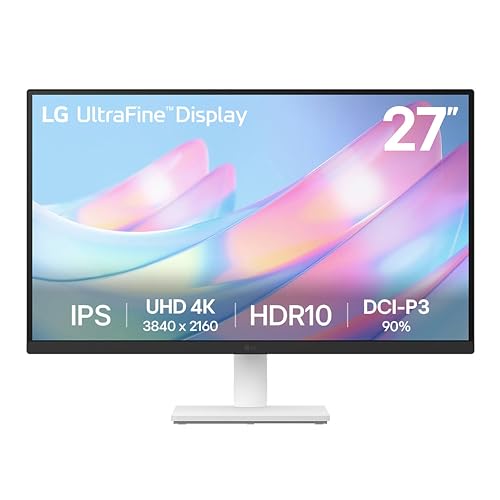
The LG 27US500-W is a simple way to add 4K resolution to a Mac Mini desk. Its 27-inch IPS panel uses a 3840 by 2160 resolution, so text and fine lines look clean when macOS scaling is set correctly. The borderless design gives it a modern look. It also supports HDR10, which can add more range to compatible video content.
This LG monitor includes Reader Mode and Flicker Safe features for people who spend a lot of time reading. HDMI and DisplayPort provide standard connection choices for a Mac Mini. The listed 60Hz refresh rate is fine for documents, email, editing, and film watching. I see it as a value-focused monitor for buyers who care more about sharp 4K output than high refresh rates or USB-C convenience.
Pros:
- Sharp 4K UHD resolution
- IPS panel with wide viewing angles
- HDR10 support for compatible content
- Borderless design looks clean on a desk
- Reader Mode helps with long text sessions
- Flicker Safe feature supports viewing comfort
- HDMI and DisplayPort connections
Cons:
- 60Hz is less smooth than the 120Hz Dell models
- USB-C is not listed among the supplied connections
- The stand may offer fewer adjustment options than ergonomic models
What Amazon Buyers Are Saying
Common buyer themes for this LG model include appreciation for the clean 4K picture, thin borders, and easy everyday setup. Users who need a basic screen often like its simple feature set. Some buyers may want more stand movement or a USB-C port, so those needs deserve attention before purchase. Reports about color can also vary because room light, macOS settings, and personal preferences affect the result.
My Recommendation
I recommend the LG 27US500-W for a straightforward 4K Mac Mini setup. It works well for office tasks, school work, browsing, and streaming. It is not my first pick for fast gaming or one-cable laptop docking, but that may not matter for a Mac Mini. If the price is attractive, it offers good value for a clean 4K workspace.
| Category | Rating |
|---|---|
| 4K image quality | 4.5/5 |
| Daily performance | 4.2/5 |
| Comfort features | 4.3/5 |
| Connectivity | 3.8/5 |
| Overall Rating | 4.2/5 |
LG 27UP850K-W 4K USB-C Monitor

The LG 27UP850K-W is the strongest pick here for creative work and USB-C convenience. It has a 27-inch 4K IPS display with DisplayHDR 400 support. Its listed DCI-P3 coverage of 95% can show a wider range of color than a basic sRGB-focused screen. The panel runs at 60Hz, which suits design, photos, video, writing, and general productivity.
Its USB Type-C port provides up to 90W power delivery, based on the supplied product details. That feature is more useful with a compatible laptop than with a Mac Mini, since the Mac Mini does not charge through the monitor. Still, the port can help simplify a mixed-device desk. The stand supports tilt, height adjustment, and pivot, while the built-in MaxxAudio speaker system adds basic sound without requiring separate speakers.
Pros:
- Detailed 4K IPS picture
- DisplayHDR 400 support
- 95% typical DCI-P3 color coverage
- USB-C with up to 90W power delivery
- Height, tilt, and pivot adjustments
- Built-in speaker with MaxxAudio
- Useful for photo, design, and video tasks
Cons:
- 60Hz refresh rate is not aimed at high-speed gaming
- 90W charging does not benefit the Mac Mini itself
- Creative users may still need a colorimeter for exact color work
What Amazon Buyers Are Saying
Buyer discussions around this LG display tend to highlight the sharp image, useful stand, color range, and USB-C feature. Users with laptops often value the charging support more than Mac Mini-only owners do. Some complaints in monitor feedback can involve speaker volume, menu learning, or the difference between factory color and a calibrated result. I suggest checking the current listing and cable details before ordering.
My Recommendation
I recommend the LG 27UP850K-W for photographers, designers, video editors, and users who share a monitor with a laptop. Its color support and adjustable stand make it more versatile than a basic 4K office screen. Mac Mini owners should buy it for the display and stand, not for charging the desktop computer. It is a strong premium choice at the right price.
| Category | Rating |
|---|---|
| Color and detail | 4.7/5 |
| USB-C usefulness | 4.7/5 |
| Stand flexibility | 4.6/5 |
| Audio and extras | 4.1/5 |
| Overall Rating | 4.5/5 |
INNOCN 27-Inch 4K USB-C Monitor

The INNOCN 27-inch 4K monitor targets users who want a clean USB-C desk setup at a practical price. It offers 4K resolution, a claimed 400-nit brightness level, and 65W power delivery. The product listing also mentions MacBook and Mac Mini use, so it fits a mixed Apple workspace. Its 27-inch size gives a useful balance between desk space and screen area.
Eye-care features include TÜV low blue light support, which may help reduce harsh blue tones during long reading sessions. The ergonomic stand adds useful flexibility for height and viewing angle. A key point is that USB-C power delivery helps compatible laptops, not the Mac Mini. I would choose this monitor when USB-C matters but the premium price of a higher-end creative display does not fit the budget.
Pros:
- 4K UHD resolution for crisp text
- 65W USB-C power delivery
- Listed 400-nit brightness
- Designed for laptop and Mac Mini desk use
- TÜV low blue light feature
- Ergonomic stand
- Good option for a mixed-device workspace
Cons:
- Refresh rate is not listed in the supplied product details
- USB-C charging does not power the Mac Mini
- Brand support and long-term service may be less familiar than Dell or LG
What Amazon Buyers Are Saying
Customer feedback for USB-C monitors like this often focuses on value, sharpness, brightness, and the ease of using one cable with a laptop. Buyers may also like the stand and eye-care features. Common points to check include USB-C cable quality, menu controls, and whether the delivered stand matches the expected range of movement. I recommend reading the newest reviews for current panel and firmware experiences before purchase.
My Recommendation
I recommend the INNOCN for buyers who want 4K, USB-C, and laptop charging at a competitive cost. It is a sensible choice for home offices and shared Apple setups. I would pick Dell or LG first if brand support or a listed refresh rate matters most. Still, this INNOCN monitor offers a useful mix of features for the money.
| Category | Rating |
|---|---|
| 4K image quality | 4.4/5 |
| USB-C value | 4.5/5 |
| Eye-care features | 4.3/5 |
| Brand confidence | 3.9/5 |
| Overall Rating | 4.2/5 |
How to Choose Best Monitors for Mac Mini
Choosing the best monitors for Mac Mini starts with your work, desk, and connection needs. The Mac Mini can drive a high-quality external display, but the right cable and port still matter. I suggest looking beyond price. A sharp panel, useful stand, and comfortable viewing setup can improve every hour you spend at the computer.
1. Match Resolution and Size to macOS
A 27-inch 4K monitor is a strong match for many Mac Mini desks. Its 3840 by 2160 resolution gives text and icons a clean look. macOS may use scaled settings to make text easier to read. A 4K screen also gives you more room for timelines, browser tabs, files, and side-by-side windows.
Check the monitor’s refresh rate as well. A 60Hz screen works for writing, office work, editing, and films. A 120Hz model feels smoother when you scroll, move windows, or play compatible games. If you want fluid movement, the Dell S2725QC and S2725QS deserve close attention.
2. Check Ports, Cables, and Power Delivery
Mac Mini models use different output ports based on generation. Before you buy, check your Mac Mini and monitor connection list. HDMI often provides a simple direct link. DisplayPort can also work well with the correct cable or adapter. USB-C may carry video on some monitors, but you should confirm the exact USB-C function.
Power delivery needs special attention. A Mac Mini is a desktop computer. It does not need monitor charging in the way a MacBook does. A 65W or 90W USB-C power feature can still help if you switch the monitor between a Mac Mini and a laptop. Do not pay extra for charging if you will never use that feature.
3. Prioritize Stand Comfort, Color, and Value
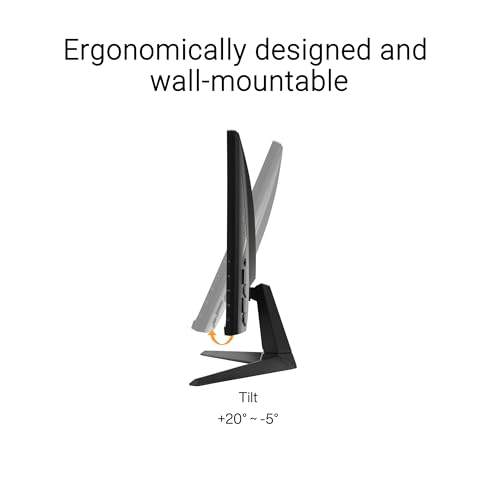
An adjustable stand can prevent neck strain. Height adjustment helps you place the screen at a better level. Pivot mode helps with long documents and code. Swivel and tilt make it easier to share the screen or reduce glare. The Dell S2725QS and LG 27UP850K-W offer the most flexible stands in this group.
For color work, look at the stated color space. sRGB suits web work and everyday use. DCI-P3 can help with wider color in photo and video tasks. HDR support may improve compatible content, but it does not replace professional calibration. Think about your real work before spending more. A simple LG 4K monitor may be the best value for basic tasks.
Final Verdict: Which Should You Buy?
The Dell S2725QC is my best overall choice. It combines 4K detail, 120Hz motion, useful ports, and 99% sRGB color. Choose the LG 27UP850K-W for creative work, or the Dell S2725QS for the most flexible stand.
The best monitors for Mac Mini should fit your tasks and your desk. Check ports, cables, stand movement, and current Amazon pricing before you order.
FAQs Of Best Monitors for Mac Mini
What monitor size is best for a Mac Mini?
A 27-inch monitor is a strong all-purpose size. It gives useful desk space without taking over most work areas. A 4K 27-inch panel also makes text and fine details look sharp.
Is a 4K monitor worth it for Mac Mini?
Yes. A 4K monitor can show sharper text, cleaner images, and more workspace than a lower-resolution screen. It works well for office tasks, coding, photos, and video.
Can I connect a Mac Mini to a USB-C monitor?
You can connect it when the monitor and Mac Mini support a compatible video path. Check the ports on your exact Mac Mini model and use the proper USB-C, HDMI, or DisplayPort cable.
Does monitor USB-C charging power a Mac Mini?
No. USB-C power delivery is mainly useful for compatible laptops. The Mac Mini uses its own AC power cable, so monitor charging does not replace its power supply.
Is 120Hz better than 60Hz for Mac Mini?
120Hz makes scrolling and motion feel smoother. It is helpful for browsing, window movement, and compatible games. A 60Hz monitor remains suitable for normal work and video viewing.